
Death Clock for Mac: Menu Bar Countdown, Life Calendar & Setup
Life Years Left is a native Mac death clock that keeps remaining time in your menu bar and lays out your life in weeks. Set a life plan, choose a display, then open the calendar whenever you want the bigger picture.
Get my free death clock estimate →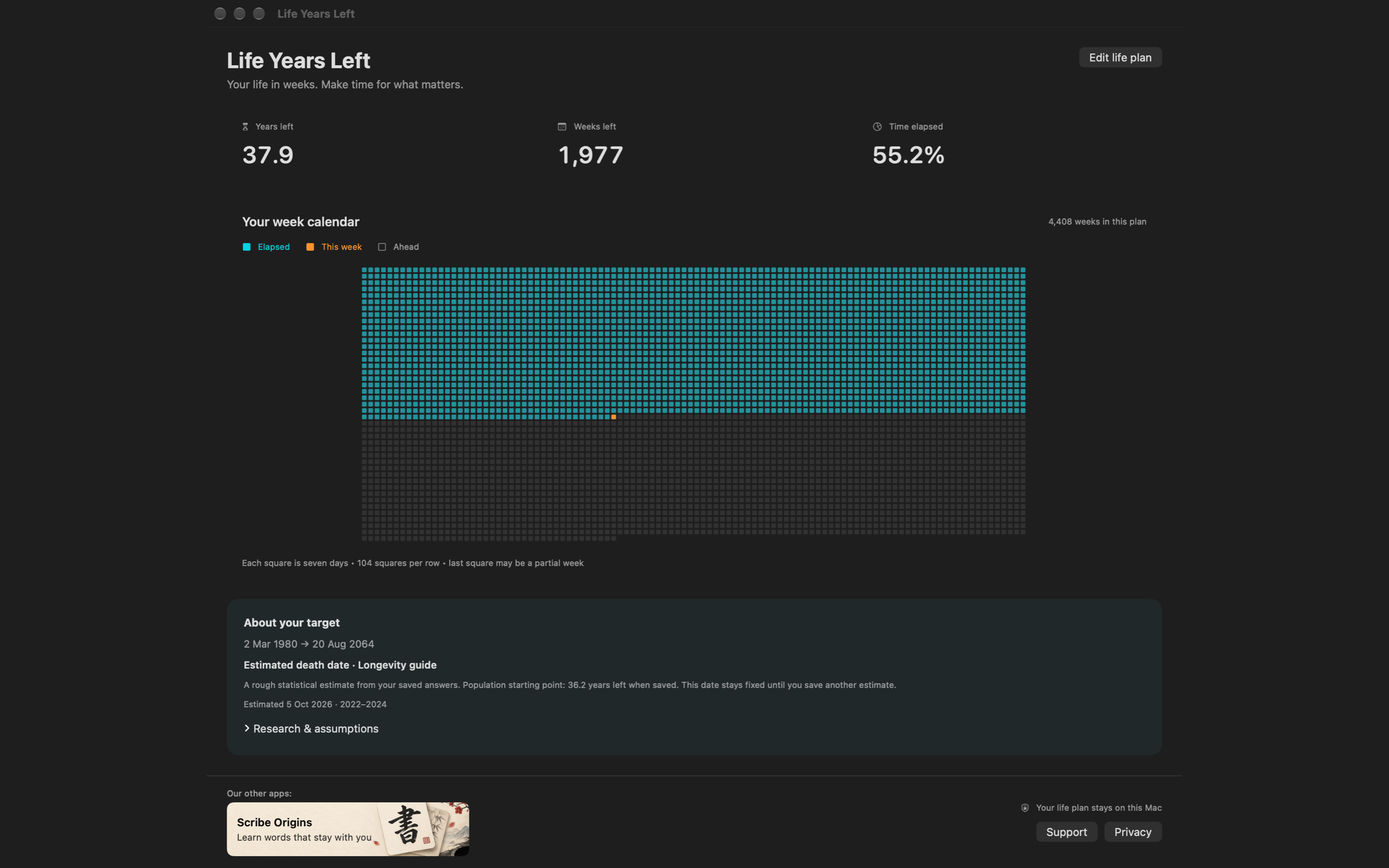
1. Choose the assumption behind your countdown
Open Settings → Life plan. The Plan picker gives you four choices:
| Plan | What you enter | What the target means |
|---|---|---|
| Choose a target age | Birth date and target age | Your chosen frame, such as age 85 |
| Use a population estimate | Birth date, country and male/female life table | Average remaining life under the published mortality rates |
| Count down between dates | A start date and end date | A range or milestone you choose |
| Use the Longevity guide | Answers in the separate guide | A research-informed scenario you can review before saving |
For the first three options, choose Save life plan. The guide uses its own Use this date button. A population target stays saved until you edit and save again.
3. Open your life calendar
Click the menu bar countdown and choose Life calendar. The calendar shows completed weeks, the current week and weeks ahead, alongside remaining years and weeks. Each square is seven calendar days; the final square can be a partial week.
The grid is arranged for the window, rather than giving each calendar year a separate row. Read the legend and numbers to orient yourself. The app fits the available screen area, with scrolling when needed.
See how a life calendar counts weeks for worked examples and ways to use the perspective.
4. Explore the Longevity guide
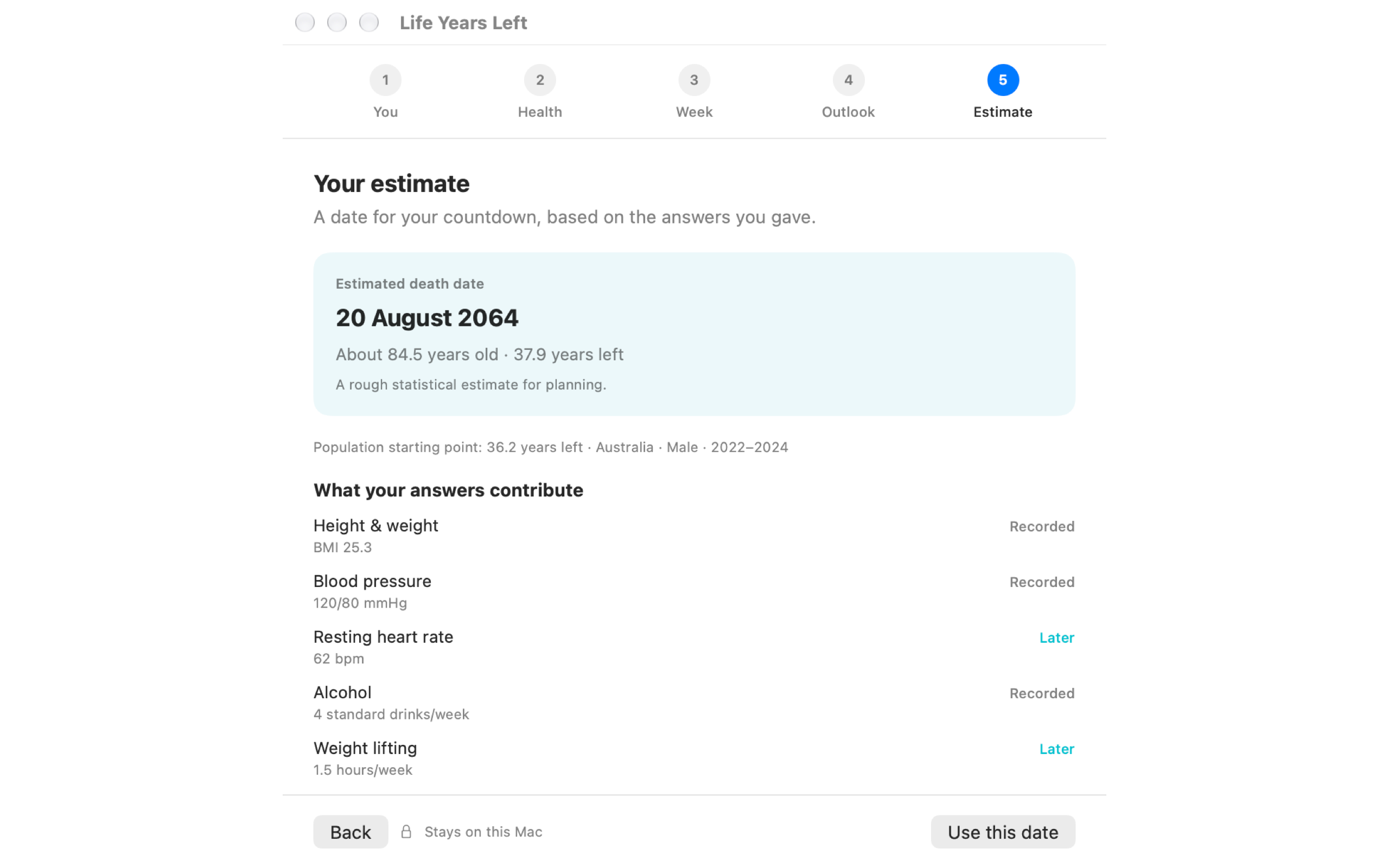
The separate guide asks about health, activity, habits and outlook. It shows a scenario you can inspect, with a Research & assumptions section. Blank or unusable answers are skipped. Guide answers and the target are saved locally only when you choose Use this date.
This combines research associations with app assumptions; it has not been clinically validated as a personal death forecast. The research guide links the studies and explains how this differs from the website’s population-only calculator.
Three ways to start using a life countdown
- Keep the setup simple. Choose a target age and a display you like. You can explore a population estimate later.
- Give a project a place in your week. Use the calendar as a prompt to put one small step on your actual schedule.
- Make room for people. When you review the weeks ahead, choose a visit or call you want to arrange.
These are suggested ways to use the reminder, rather than measured outcomes of the app.
Mac requirements, privacy and availability
Life Years Left requires macOS 13 or later and supports Intel and Apple silicon. No account is required for the life calendar. Your app life plan, display settings and saved guide answers stay in local preferences; the bundled estimates do not need a network request.
The Mac app is built and its public App Store link is being prepared. Request the app release link. The free online death clock calculator is available now and requires an email to receive and display its result.
Common questions
Can a Mac death clock show weeks instead of years?
Yes. Life Years Left offers Years, Weeks, Days, Percent and Alternating in Settings → Display. The life calendar also shows remaining weeks and elapsed weeks.
Does the Mac death clock recalculate my target every day?
No. It counts down to the saved end date. A population target changes when you edit and save the life plan again.
Can I change my death clock date?
Yes. Open Settings → Life plan to choose a target age, population estimate or custom range, then save. The separate Longevity guide saves its result when you choose Use this date.
Does the local Mac calendar require an account?
No. The local life calendar does not require an account. Website result emails and release-link signups are separate actions.